
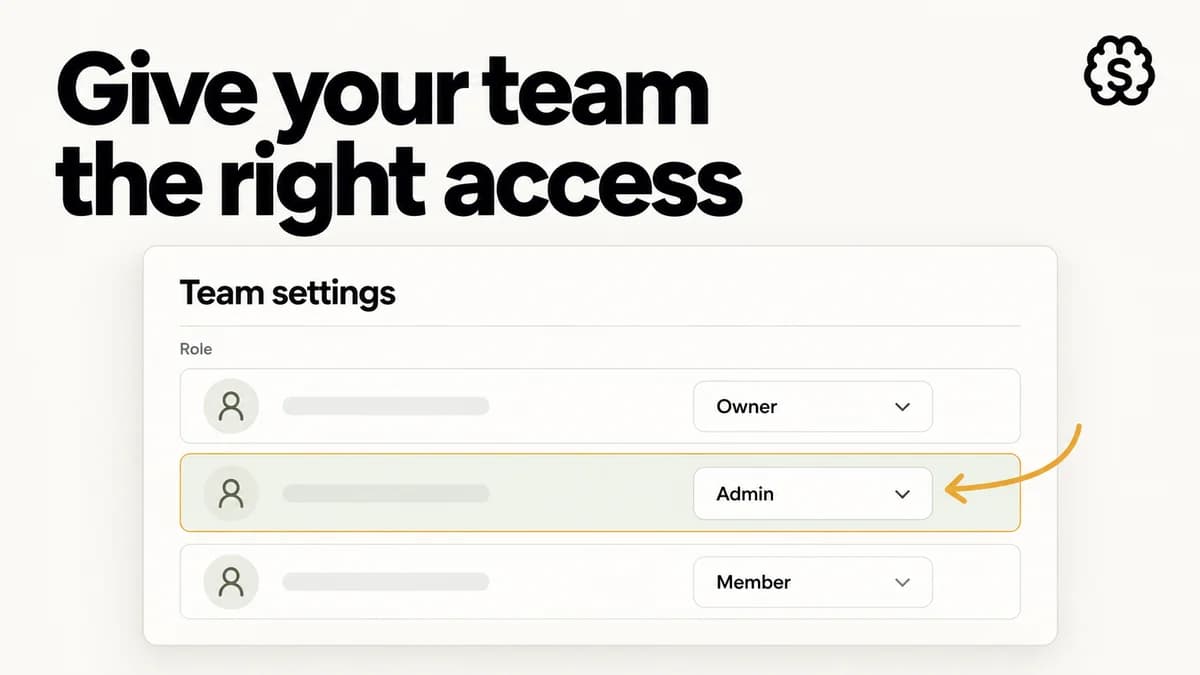
What team access controls
Every StefanBrain workspace has one owner and any number of admins and members, managed from the Team page in Settings. Team access adds a per member layer on top of those roles: three product surfaces that an owner or admin can switch on or off for each individual member.
The three surfaces are Video (AI video ads and editing), Launch (uploading and publishing creatives to ad accounts), and Creative Strategist (the analysis workspace connected to your ad performance data). Chat, images, and the rest of the workspace stay available to every seat.
The defaults are deliberately open. New members start with all three surfaces switched on, and owners and admins always have full access. You only touch the toggles when you want to narrow what a specific person can do, for example a freelance editor who should stay out of Launch, or a new hire who should not spend video minutes yet.
Flip access per member on the Team page
Open Settings, then Team. Each member row carries an Access group with one toggle per surface. Flip a toggle off and that member loses the surface immediately; flip it back on and they get it back just as fast. No plan changes, no re invites, no support ticket.
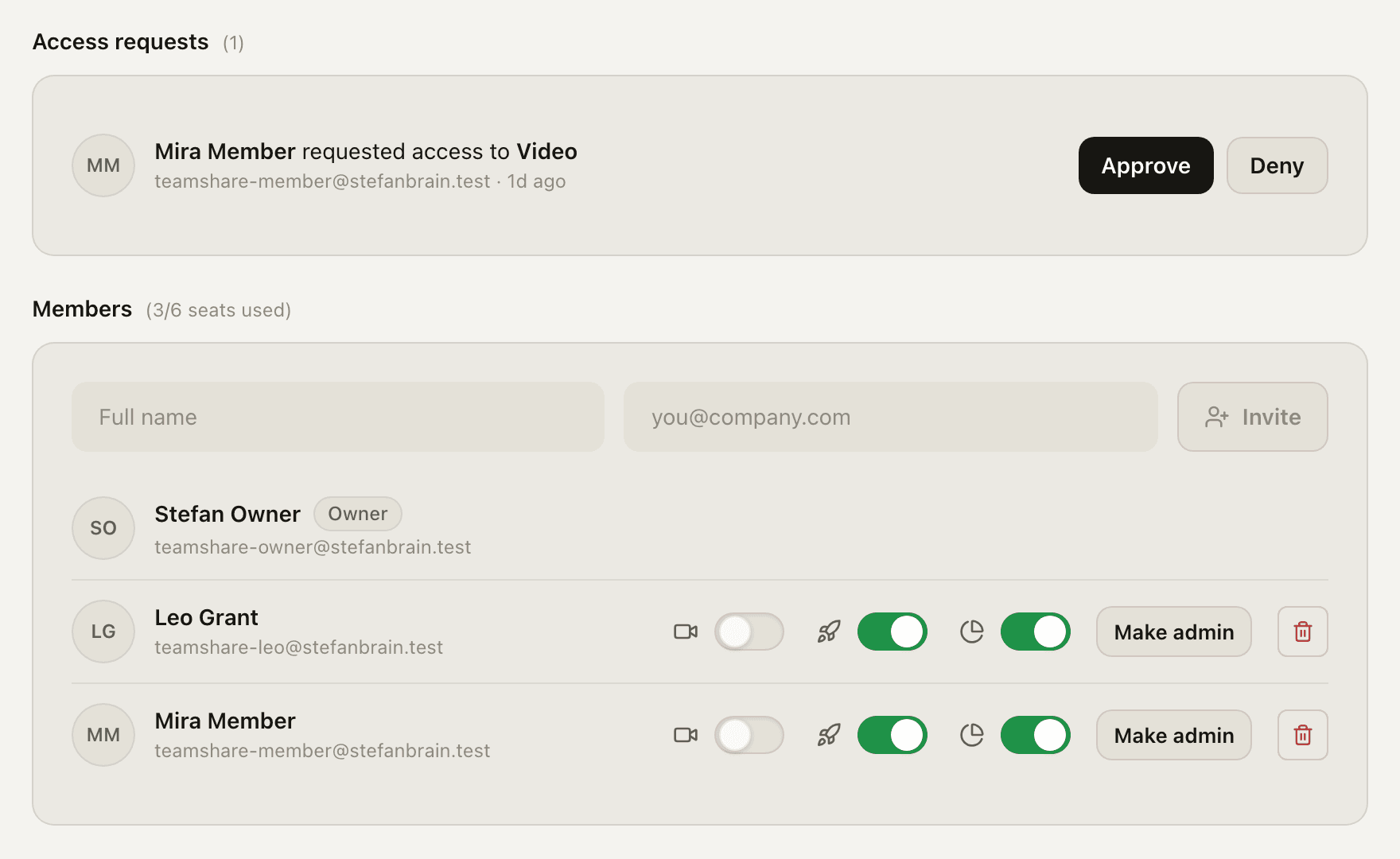
The Video toggle does one extra job. Video access is tied to your plan's monthly video minutes, so turning it off also returns that member's unused minutes to the shared pool for the rest of the team. The toggle discloses this before you flip it.
Locked does not mean hidden
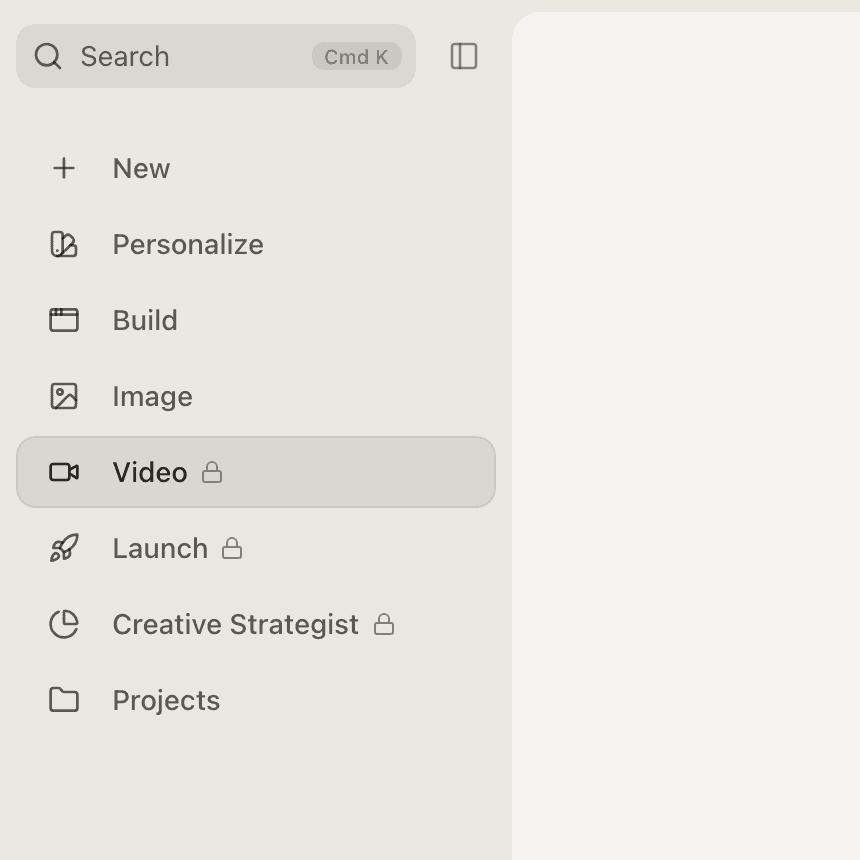
When a member loses a surface, StefanBrain does not delete it from their sidebar. The entry stays exactly where it was, marked with a small lock. Members always know the capability exists and that it is a permission away, which matters when a manager says "check the Creative Strategist" and the member needs to understand why they cannot open it yet.
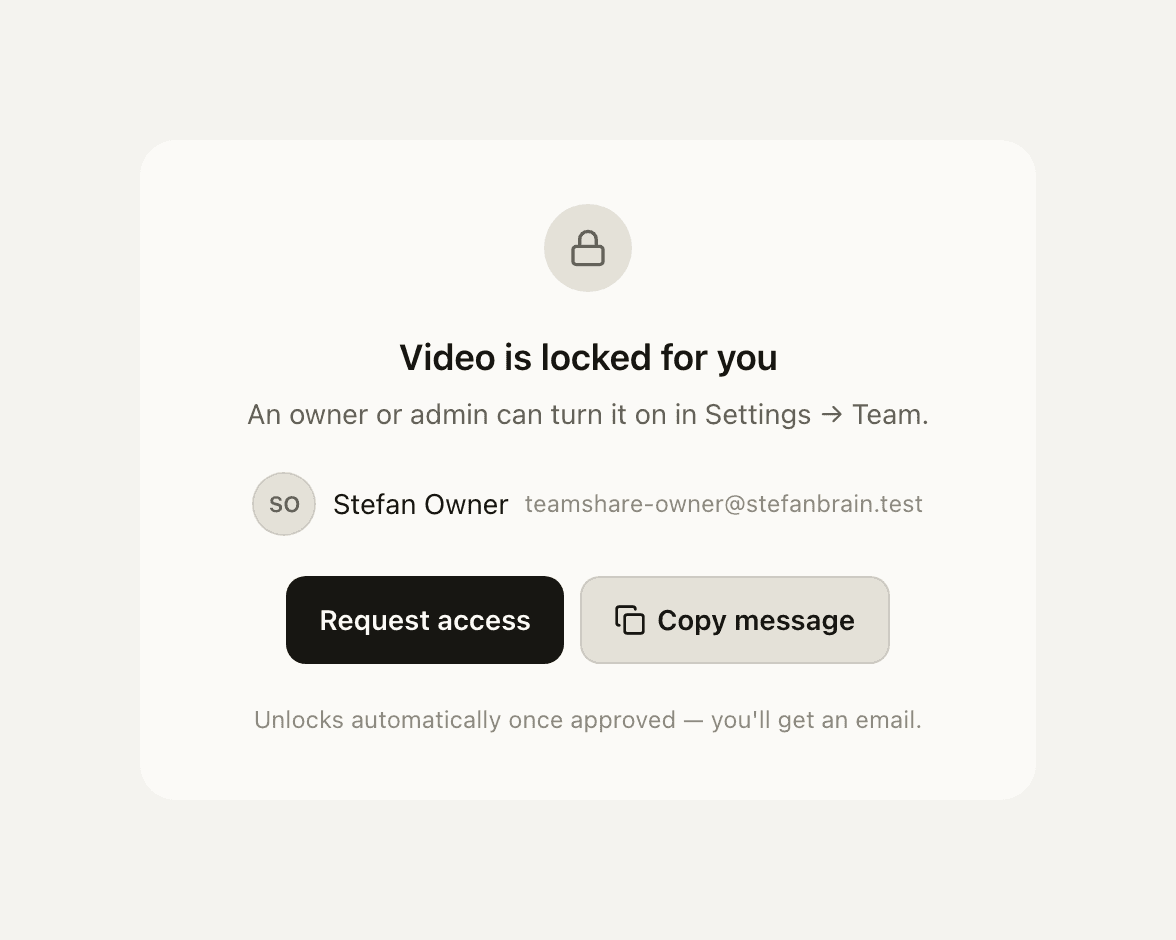
Clicking a locked entry opens the surface as usual, but the workspace shows an access panel instead of the tools. The panel names the surface, lists the owners and admins who can unlock it, and offers two actions: request access directly, or copy a short prewritten message to paste into Slack or wherever the team talks.
The lock is enforced on the server, not just painted on the screen. Every API behind a locked surface checks the same grant, so a revoked member cannot reach the capability through a saved link, a stale tab, or a script.
Requests and approvals in one click each
The request loop is built to take seconds on both sides. A member presses Request access once; the button becomes a Requested pill and stays that way, so there is nothing to resend and no way to spam the queue with duplicates.
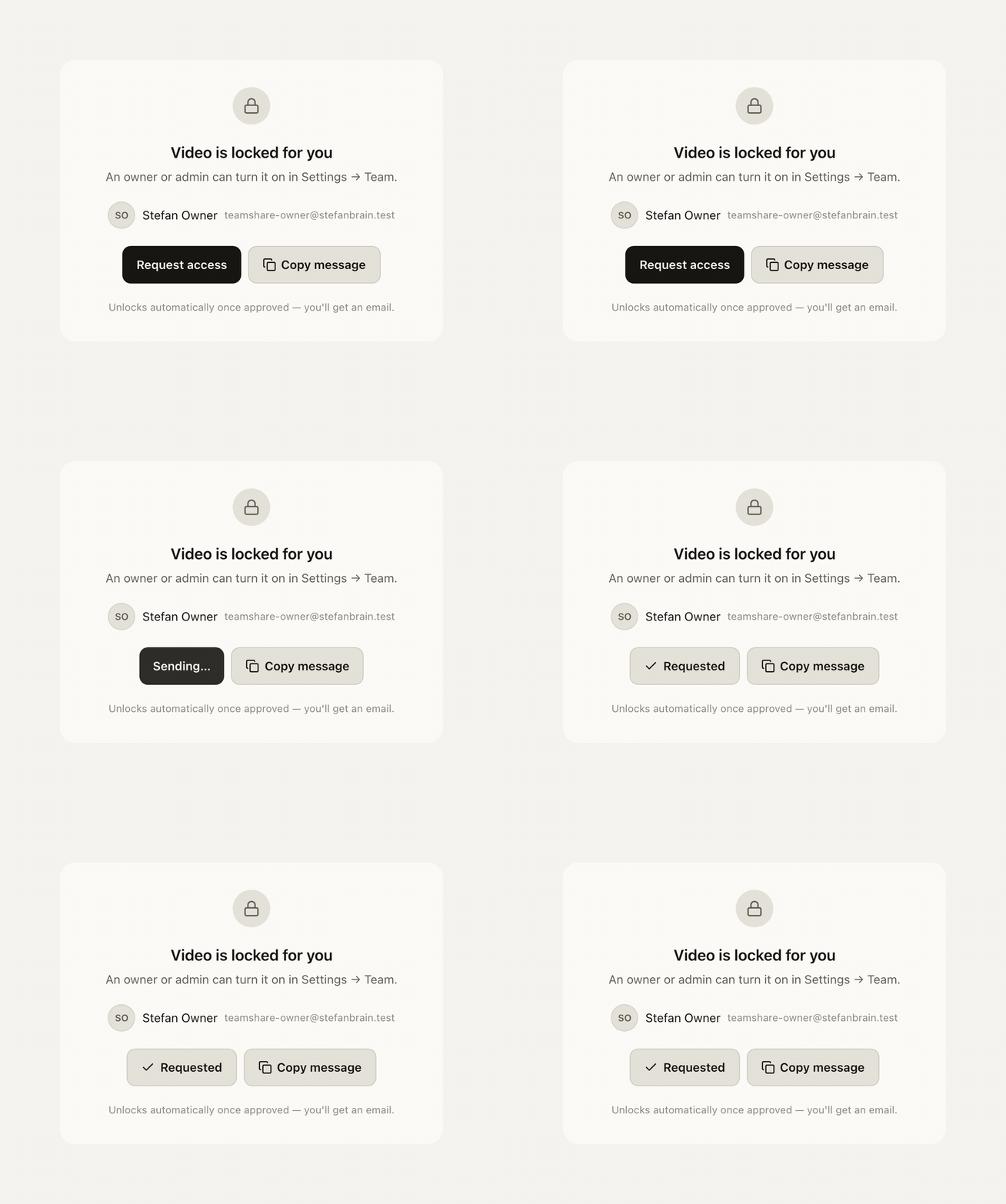
Every owner and admin gets an email naming the member and the surface, with a link straight to the request queue. The same queue sits at the top of the Team page whenever requests are waiting, and each row resolves with a single Approve or Deny press.
When a request is approved, the member gets a confirmation email, and the locked panel notices on its own. A member sitting on the gate page sees it unlock within moments of approval, without refreshing anything. A denied request simply returns the panel to its starting state, so the member can ask again later or follow up in chat.
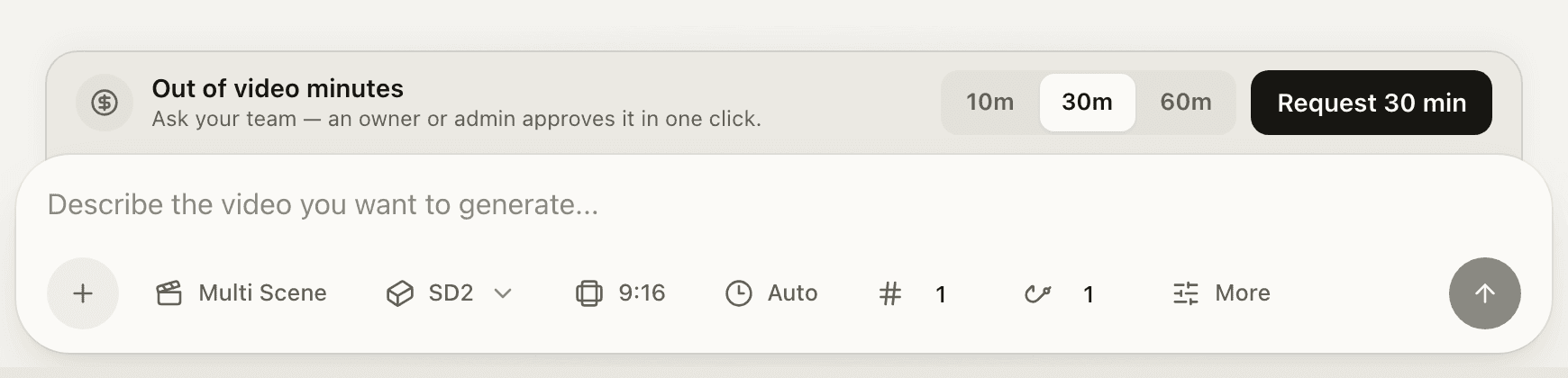
Video minutes ride the same loop. A member who runs out of minutes sees a request panel right above the Video composer: pick 10, 30, or 60 minutes and press request. The Team page queue shows exactly what was asked, and approving adds exactly those minutes for the current month. Setting a member's minutes by hand in the Usage tab clears their pending request, the same way the access toggle resolves a surface request.
The rules the system keeps for you
A few guarantees hold the whole flow together, and none of them require anyone to remember anything:
New members start open. Every invite begins with all three surfaces granted, so onboarding never stalls on permissions. Narrow later if you need to.
Owners and admins are never locked. Access toggles exist only on member rows. Promoting someone to admin grants everything; demoting an admin to member restores the default open grants rather than guessing.
Access and spending stay separate ideas. Video access decides whether a member can enter the video workspace at all; video minutes and image credits still come from the team plan they always did. Locking a surface is how you stop usage before it happens rather than after the bill, and a member who runs dry can request more minutes without leaving the Video page.
Removing a member cleans up. If someone leaves the team with requests still pending, those requests are voided so the queue never shows ghosts.
Connection sharing composes with all of this: surface access decides which workspace a member can use, and Team Meta sources decide which ad accounts are available there. Creative Strategist access grants analysis. Launch access grants publishing.
Share Meta sources through Team settings
Meta connections are shareable too. An owner selects one or more Team Meta sources in Team settings. Teammates can then use the ad accounts from those sources in the workspaces they can access, without connecting Meta themselves.
Team access is the only permission model. Creative Strategist access lets a member read and analyze shared accounts. Launch access lets a member publish through those accounts. The server enforces both rules, so there is no second connector permission to manage.
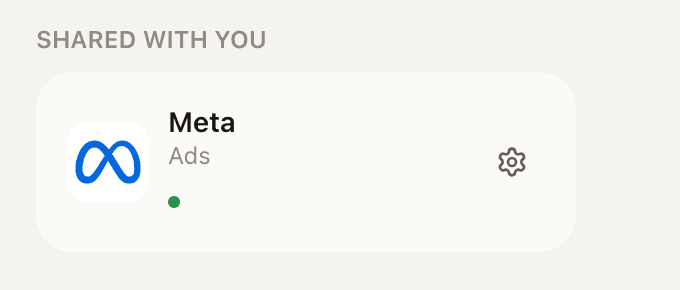
Teammates always see what has been shared with them. The connection appears on their own Connectors page under Shared with you, opens read-only with a personal use-in-my-chats switch, and ad account pickers across Launch and Creative Strategist label shared accounts with the sharer's name, so mixed lists stay easy to read. Turning the connection off for chat does not remove workspace access.
The same team rules apply here as everywhere else: removing someone from the team ends their shared access immediately, and disconnecting Meta ends the share with it.